Web Accessibility Testing: A Complete Guide for Developers
Introduction
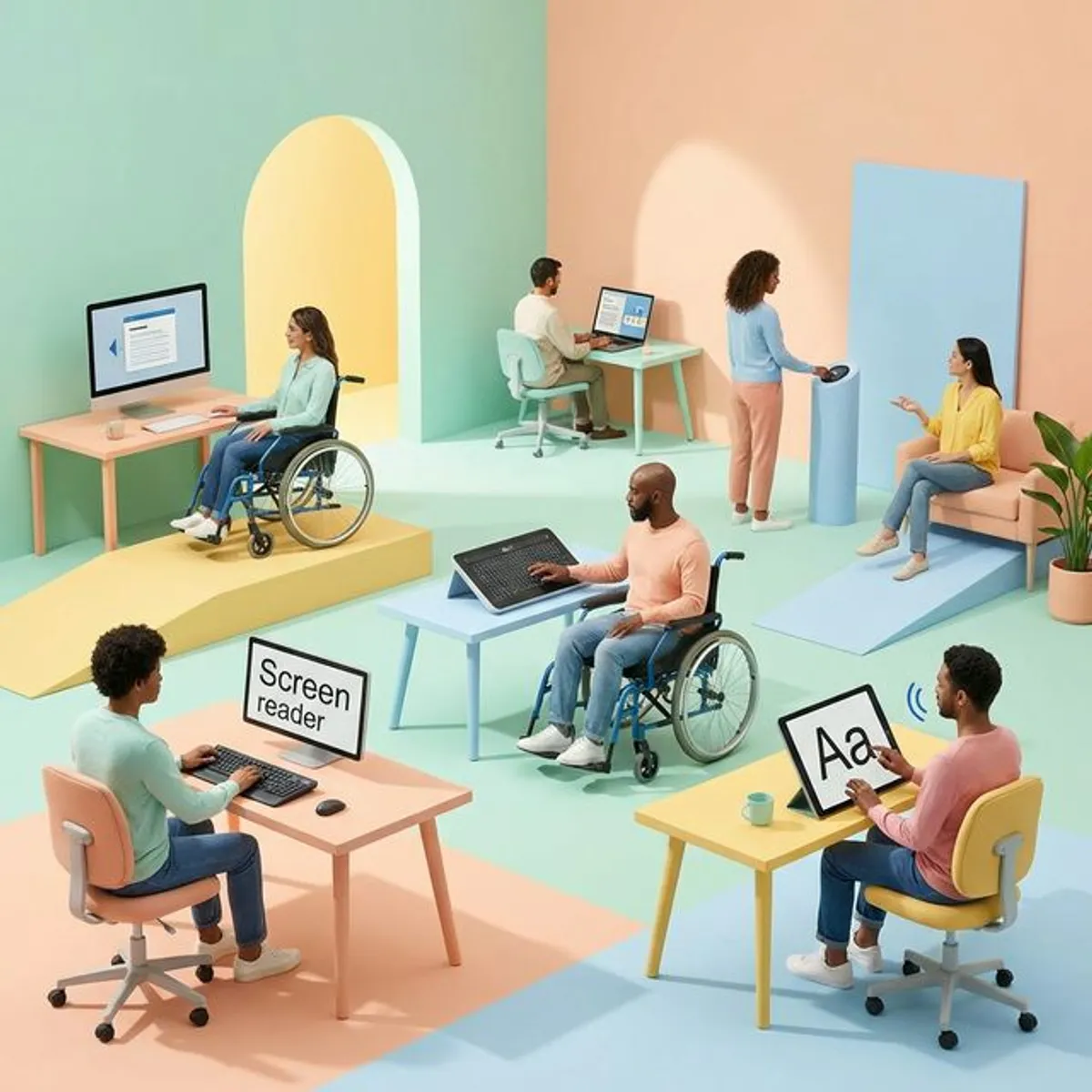
Imagine launching a website you’ve poured weeks of effort into, only to discover that 15% of your potential users struggle to navigate it. This isn’t a hypothetical scenario—over 1 billion people, around 15% of the global population, face accessibility challenges online. When websites fail to accommodate users with visual, auditory, motor, or cognitive differences, they aren’t just alienating a massive audience—they’re creating barriers that deny equal access to information and services..
Web accessibility testing ensures your digital products work for everyone. It’s about verifying that people using screen readers can complete purchases, that keyboard-only users can navigate your forms, and that color-blind users can distinguish your call-to-action buttons. Beyond the ethical imperative, accessible websites see a 20% increase in traffic and user engagement, and non-compliance can result in costly lawsuits and reputational damage.
This guide will walk you through practical accessibility testing techniques, from automated scanning to manual testing with assistive technologies. You’ll learn which tools to use, common pitfalls to avoid, and how to integrate accessibility checks into your development workflow. Whether you’re a developer, QA engineer, or designer, you’ll gain actionable skills to build more inclusive web experiences.
Prerequisites
Before diving into accessibility testing, you should have:
- Basic web development knowledge: Understanding of HTML, CSS, and JavaScript fundamentals
- A modern web browser: Chrome, Firefox, Edge, or Safari with developer tools
- Screen reader software: NVDA (Windows, free), JAWS (Windows, paid), or VoiceOver (macOS/iOS, built-in)
- Testing tools installed: We’ll use browser extensions and command-line tools
- Familiarity with browser DevTools: Basic debugging and element inspection skills
- Test website access: Either a site you’re developing or permission to test a live site
No prior accessibility experience is required—this guide assumes you’re starting from scratch.
Understanding Web Accessibility Standards
Web accessibility is guided by the Web Content Accessibility Guidelines (WCAG), developed by the World Wide Web Consortium (W3C). WCAG organizes accessibility around four core principles, known by the acronym POUR:
Perceivable: Information must be presented in ways users can perceive through multiple senses. This means providing text alternatives for images, captions for videos, and ensuring content doesn’t rely solely on color to convey meaning.
Operable: Users must be able to operate interface components and navigate content. All functionality should be available via keyboard, users need sufficient time to complete tasks, and content shouldn’t cause seizures through flashing.
Understandable: Information and interface operation must be clear. This includes readable text, predictable navigation patterns, and helpful error messages that guide users toward solutions.
Robust: Content must work reliably across different technologies, browsers, and assistive devices. This means using valid HTML, proper ARIA attributes, and ensuring compatibility with screen readers.
WCAG defines three conformance levels:
- Level A: Basic accessibility features (minimum requirement)
- Level AA: Most widely adopted standard, required by many laws
- Level AAA: Highest level of accessibility (not always achievable for all content)
Most organizations should aim to meet Level AA standards, as these are referenced in regulations like Section 508 of the U.S. Rehabilitation Act and the Americans with Disabilities Act (ADA).
Types of Accessibility Testing
Accessibility testing isn’t a single activity—it requires multiple complementary approaches:
Automated Testing
Automated tools scan your code and flag common issues like missing alt text, insufficient color contrast, and improper heading structure. Automated tools can catch about 40% of all accessibility issues, making them excellent for quick scans and continuous integration pipelines.
Popular tools include:
- axe DevTools: Browser extension with comprehensive checks and remediation guidance
- Lighthouse: Built into Chrome DevTools, provides accessibility scores alongside performance metrics
- WAVE: Visual feedback tool that overlays icons on your page showing issues
- Pa11y: Command-line tool for CI/CD integration
Manual Testing
Manual testing catches issues that automated tools miss, such as logical reading order, meaningful link text in context, and proper focus management. This involves:
- Keyboard navigation: Testing with Tab, Shift+Tab, Enter, Space, and arrow keys
- Screen reader testing: Using NVDA, JAWS, or VoiceOver to navigate content
- Zoom and magnification: Testing at 200% zoom and with browser text-only zoom
- Color contrast verification: Checking ratios with specialized tools
User Testing with Assistive Technology
The most valuable testing involves real users with disabilities using their own assistive technologies. Real-user testing with disabled people shows problems that cannot be completely simulated with any program or automated tools. This reveals practical barriers that technical audits might miss.
Essential Testing Tools and Setup
Let’s set up your accessibility testing toolkit. Here’s a practical configuration that covers both automated and manual testing:
Browser Extensions Setup
For Chrome/Edge:
# Install axe DevTools (Chromium-based browsers)
# 1. Visit Chrome Web Store
# 2. Search "axe DevTools - Web Accessibility Testing"
# 3. Click "Add to Chrome/Edge"

# Install WAVE Extension
# 1. Visit Chrome Web Store
# 2. Search "WAVE Evaluation Tool"
# 3. Click "Add to Chrome/Edge"
For Firefox:
# Install axe DevTools for Firefox
# 1. Visit Firefox Add-ons
# 2. Search "axe DevTools"
# 3. Click "Add to Firefox"
Installing NVDA Screen Reader (Windows)
# Download NVDA (free, open-source)
# Visit: https://www.nvaccess.org/download/

# Basic NVDA commands:
# NVDA + Q = Quit NVDA
# NVDA + N = Open NVDA menu
# NVDA + T = Read title
# Insert key is typically the NVDA modifier key

# Reading commands:
# Down Arrow = Read next line
# NVDA + Down Arrow = Read all from cursor
# Ctrl = Stop speech
Command-Line Tools for CI/CD
# Install Pa11y globally via npm
npm install -g pa11y

# Install axe-core for automated testing
npm install --save-dev @axe-core/cli

# Install Playwright with axe integration
npm install --save-dev @playwright/test @axe-core/playwright
Setting Up Playwright Accessibility Tests
// accessibility.spec.js
import { test, expect } from '@playwright/test';
import AxeBuilder from '@axe-core/playwright';

test.describe('Homepage Accessibility', () => {
  test('should not have automatically detectable accessibility issues', async ({ page }) => {
    // Navigate to your page
    await page.goto('https://your-website.com');

    // Run axe accessibility scan
    const accessibilityScanResults = await new AxeBuilder({ page })
      .withTags(['wcag2a', 'wcag2aa']) // Test against WCAG 2 Level A & AA
      .analyze();

    // Assert no violations found
    expect(accessibilityScanResults.violations).toEqual([]);
  });

  test('navigation menu should be accessible', async ({ page }) => {
    await page.goto('https://your-website.com');

    // Interact with the page before testing
    await page.getByRole('button', { name: 'Menu' }).click();
    await page.locator('#navigation-flyout').waitFor();

    // Scan only the navigation menu
    const scanResults = await new AxeBuilder({ page })
      .include('#navigation-flyout')
      .analyze();

    expect(scanResults.violations).toEqual([]);
  });
});
Running Pa11y from Command Line
# Test a single page
pa11y https://your-website.com

# Test with specific WCAG level
pa11y --standard WCAG2AA https://your-website.com

# Test multiple pages and save results
pa11y --reporter json https://your-website.com > results.json

# Test with custom viewport
pa11y --viewport 320x568 https://your-website.com
Manual Testing: The Keyboard Navigation Test
Keyboard accessibility is fundamental—if users can’t navigate with a keyboard, they can’t use screen readers either. Here’s a systematic keyboard testing workflow:
Step-by-Step Keyboard Testing
// This isn't executable code, but represents the testing process

/*
KEYBOARD TESTING CHECKLIST:

1. Tab Navigation (Tab key)
   ✓ Can you reach all interactive elements?
   ✓ Is the focus indicator clearly visible?
   ✓ Does tab order follow logical reading order?

2. Form Interaction
   ✓ Can you complete forms using only keyboard?
   ✓ Radio buttons: Arrow keys to select
   ✓ Checkboxes: Space to toggle
   ✓ Dropdowns: Arrow keys to navigate options

3. Modal Dialogs
   ✓ Focus moves to modal when opened
   ✓ Tab stays trapped inside modal
   ✓ Escape key closes modal
   ✓ Focus returns to trigger element

4. Custom Widgets
   ✓ Carousels: Arrow keys or Tab to navigate
   ✓ Accordions: Space/Enter to expand/collapse
   ✓ Tabs: Arrow keys to switch between tabs

5. Skip Links
   ✓ "Skip to main content" link is first tab stop
   ✓ Works when activated

RED FLAGS:
✗ Keyboard trap (can't tab out of element)
✗ No visible focus indicator
✗ Focus order jumps randomly
✗ Can't close modals with Escape
✗ Decorative elements receive focus
*/
Practical Example: Testing a Login Form
<!-- Good: Accessible login form -->
<form action="/login" method="post">
  <div>
    <label for="username">Username:</label>
    <input
      type="text"
      id="username"
      name="username"
      aria-required="true"
      aria-describedby="username-hint"
    />
    <span id="username-hint">Enter your email address</span>
  </div>

  <div>
    <label for="password">Password:</label>
    <input
      type="password"
      id="password"
      name="password"
      aria-required="true"
    />
  </div>

  <div role="alert" aria-live="assertive" id="error-message">
    <!-- Error messages appear here -->
  </div>

  <button type="submit">Log In</button>
</form>

<!-- Testing process:
1. Tab to username field (should focus)
2. Type username
3. Tab to password field (should focus)
4. Type password
5. Tab to submit button (should focus)
6. Press Enter or Space to submit
7. If error: Screen reader announces error message
-->
Screen Reader Testing Fundamentals
Screen reader testing reveals how your site sounds to blind users. Here’s a practical introduction:
Basic NVDA Commands for Testing
# Starting NVDA
# 1. Launch NVDA from desktop shortcut
# 2. NVDA will announce "NVDA started"
# 3. Open your website in browser

# Essential navigation commands:
# NVDA + Down Arrow = Read all from current position
# Down Arrow = Read next line
# Up Arrow = Read previous line
# H = Jump to next heading
# Shift + H = Jump to previous heading
# K = Jump to next link
# F = Jump to next form field
# T = Jump to next table
# L = Jump to next list

# Testing focus:
# Tab = Move to next focusable element (NVDA reads it)
# Shift + Tab = Move to previous element

# Reading current element:
# NVDA + Tab = Read current focus
# Insert + Up Arrow = Read current line
What to Listen For
/*
SCREEN READER TESTING CHECKLIST:

1. Images
   ✓ Decorative images: Announced as "graphic" or skipped
   ✓ Content images: Alt text read aloud
   ✗ "Image of IMG underscore 2043.jpg" (bad filename as alt)

2. Links
   ✓ Purpose is clear from link text alone
   ✗ Multiple "click here" or "read more" links
   ✗ Links announced as "link visited link visited link"

3. Headings
   ✓ Logical hierarchy (H1 → H2 → H3)
   ✓ Headings describe following content
   ✗ Skipped heading levels (H1 → H3)

4. Forms
   ✓ Labels clearly associated with inputs
   ✓ Required fields announced
   ✓ Error messages read aloud
   ✗ "Edit blank" (unlabeled input)

5. Dynamic Content
   ✓ ARIA live regions announce updates
   ✓ Loading states communicated
   ✗ Content changes silently

6. Tables
   ✓ Header cells identified
   ✓ Row/column associations clear
   ✗ Data table marked as layout table
*/
Testing a Real Scenario: Shopping Cart
<!-- Accessible shopping cart example -->
<section aria-labelledby="cart-heading">
  <h2 id="cart-heading">Shopping Cart (3 items)</h2>

  <table aria-describedby="cart-description">
    <caption id="cart-description">
      Your cart contains 3 items totaling $124.97
    </caption>

    <thead>
      <tr>
        <th scope="col">Product</th>
        <th scope="col">Quantity</th>
        <th scope="col">Price</th>
        <th scope="col">Actions</th>
      </tr>
    </thead>

    <tbody>
      <tr>
        <td>
          <img src="shirt.jpg" alt="" role="presentation" />
          Blue Cotton T-Shirt
        </td>
        <td>
          <label for="qty-1" class="visually-hidden">
            Quantity for Blue Cotton T-Shirt
          </label>
          <input type="number" id="qty-1" value="2" min="1" max="10" />
        </td>
        <td>$29.99</td>
        <td>
          <button
            aria-label="Remove Blue Cotton T-Shirt from cart"
            onclick="removeItem(1)"
          >
            Remove
          </button>
        </td>
      </tr>
    </tbody>
  </table>

  <div aria-live="polite" aria-atomic="true" id="cart-status">
    <!-- Announces changes like "Item removed from cart" -->
  </div>

  <div class="cart-total">
    <strong>Total:</strong>
    <span aria-label="Total price $124.97">$124.97</span>
  </div>

  <button type="button" onclick="checkout()">
    Proceed to Checkout
  </button>
</section>

<!-- Test with NVDA:
1. H key to jump to "Shopping Cart" heading
2. T key to jump to table
3. Arrow keys to navigate table cells
4. Tab through quantity inputs and Remove buttons
5. Listen for proper labeling and associations
6. Modify quantity and verify announcement
-->
Common Accessibility Issues and Solutions
Based on real-world audits, here are the most frequent problems developers encounter:
1. Missing or Poor Alternative Text
Missing or inappropriate alternative text for images is one of the most common accessibility issues.
<!-- ❌ Bad: Missing alt text -->
<img src="product-photo.jpg">

<!-- ❌ Bad: Redundant alt text -->
<img src="chart.jpg" alt="Image of chart showing sales data">

<!-- ❌ Bad: Filename as alt text -->
<img src="IMG_2043.jpg" alt="IMG_2043.jpg">

<!-- ✅ Good: Descriptive alt text for content images -->
<img src="sales-chart.jpg" alt="Sales increased 40% from Q2 to Q3 2024">

<!-- ✅ Good: Empty alt for decorative images -->
<img src="decorative-border.png" alt="" role="presentation">

<!-- ✅ Good: Complex image with longer description -->
<figure>
  <img
    src="org-chart.png"
    alt="Company organizational structure"
    aria-describedby="org-details"
  >
  <figcaption id="org-details">
    The CEO reports to the Board of Directors.
    Under the CEO are three departments:
    Engineering led by Sarah Chen,
    Marketing led by James Rodriguez, and
    Operations led by Aisha Patel.
  </figcaption>
</figure>
2. Insufficient Color Contrast
Poor color contrast primarily affects users with color blindness, low vision, or other visual impairments. WCAG requires a minimum contrast ratio of 4.5:1 for normal text.
/* ❌ Bad: Insufficient contrast (2.5:1 ratio) */
.button {
  background-color: #7ED321; /* Light green */
  color: #FFFFFF; /* White */
  /* This combination fails WCAG AA */
}

/* ✅ Good: Sufficient contrast (7.2:1 ratio) */
.button {
  background-color: #2D8C00; /* Darker green */
  color: #FFFFFF; /* White */
}

/* ✅ Good: High contrast alternative */
.button-high-contrast {
  background-color: #000000; /* Black */
  color: #FFFFFF; /* White */
  /* 21:1 ratio - maximum possible */
}

/* Testing color contrast:
1. Use browser DevTools color picker
2. Install browser extension like "Color Contrast Analyzer"
3. Visit webaim.org/resources/contrastchecker
4. Enter hex codes and verify ratios
*/
3. Improper Heading Hierarchy
<!-- ❌ Bad: Skipped heading levels -->
<h1>Website Title</h1>
<h3>First Section</h3> <!-- Skipped H2 -->
<h2>Subsection</h2> <!-- H2 after H3 -->

<!-- ✅ Good: Proper heading hierarchy -->
<h1>Website Title</h1>
<h2>First Section</h2>
<h3>Subsection A</h3>
<h3>Subsection B</h3>
<h2>Second Section</h2>
<h3>Subsection C</h3>

<!-- Use CSS to style headings, never skip levels for visual effect -->
4. Unlabeled Form Inputs
<!-- ❌ Bad: No label -->
<input type="text" placeholder="Enter email">

<!-- ❌ Bad: Label not associated -->
<label>Email Address</label>
<input type="email" name="email">

<!-- ✅ Good: Explicit label association -->
<label for="email-input">Email Address</label>
<input type="email" id="email-input" name="email" required>

<!-- ✅ Good: Fieldset for radio groups -->
<fieldset>
  <legend>Preferred contact method</legend>
  <div>
    <input type="radio" id="contact-email" name="contact" value="email">
    <label for="contact-email">Email</label>
  </div>
  <div>
    <input type="radio" id="contact-phone" name="contact" value="phone">
    <label for="contact-phone">Phone</label>
  </div>
</fieldset>
5. Keyboard Traps
// ❌ Bad: Modal without focus trap
function openModal() {
  document.getElementById('modal').style.display = 'block';
  // Focus can tab out to background content!
}

// ✅ Good: Proper focus management
function openModal() {
  const modal = document.getElementById('modal');
  const focusableElements = modal.querySelectorAll(
    'button, [href], input, select, textarea, [tabindex]:not([tabindex="-1"])'
  );
  const firstFocusable = focusableElements[0];
  const lastFocusable = focusableElements[focusableElements.length - 1];

  // Store currently focused element
  const previouslyFocused = document.activeElement;

  modal.style.display = 'block';
  firstFocusable.focus();

  // Trap focus inside modal
  modal.addEventListener('keydown', function(e) {
    if (e.key === 'Tab') {
      if (e.shiftKey) { // Shift + Tab
        if (document.activeElement === firstFocusable) {
          e.preventDefault();
          lastFocusable.focus();
        }
      } else { // Tab
        if (document.activeElement === lastFocusable) {
          e.preventDefault();
          firstFocusable.focus();
        }
      }
    }

    // Close with Escape
    if (e.key === 'Escape') {
      closeModal();
    }
  });

  // Return focus when closed
  function closeModal() {
    modal.style.display = 'none';
    previouslyFocused.focus();
  }
}
Integrating Accessibility into Your Workflow
Accessibility shouldn’t be an afterthought. Here’s how to build it into your development process:
Setting Up CI/CD Accessibility Checks
# .github/workflows/accessibility.yml
name: Accessibility Tests

on: [push, pull_request]

jobs:
  a11y-tests:
    runs-on: ubuntu-latest

    steps:
      - uses: actions/checkout@v3

      - name: Setup Node.js
        uses: actions/setup-node@v3
        with:
          node-version: '18'

      - name: Install dependencies
        run: npm ci

      - name: Build application
        run: npm run build

      - name: Start server
        run: npm run start &

      - name: Wait for server
        run: npx wait-on http://localhost:3000

      - name: Run Pa11y tests
        run: |
          npm install -g pa11y-ci
          pa11y-ci --config .pa11yci.json

      - name: Run Playwright accessibility tests
        run: npm run test:a11y
// .pa11yci.json
{
"defaults": {
"standard": "WCAG2AA",
"timeout": 30000,
"wait": 1000,
"chromeLaunchConfig": {
"args": ["--no-sandbox"]
}
},
"urls": [
"http://localhost:3000",
"http://localhost:3000/products",
"http://localhost:3000/checkout",
"http://localhost:3000/contact"
]
}Creating an Accessibility Testing Checklist
## Pre-Deployment Accessibility Checklist

### Automated Testing
- [ ] Run axe DevTools on all major pages
- [ ] Run Lighthouse accessibility audit (score >90)
- [ ] CI/CD pipeline accessibility tests passing
- [ ] No WAVE errors on critical user flows

### Manual Testing - Keyboard
- [ ] All interactive elements reachable via Tab
- [ ] Visible focus indicators on all elements
- [ ] Logical tab order matches visual layout
- [ ] No keyboard traps in modals/widgets
- [ ] Skip navigation link present and functional

### Manual Testing - Screen Reader
- [ ] Test with NVDA on Windows/Firefox
- [ ] Test with VoiceOver on macOS/Safari
- [ ] All images have appropriate alt text
- [ ] Forms properly labeled and announced
- [ ] Headings structure is logical (H1-H6)
- [ ] ARIA live regions announce dynamic content

### Visual Testing
- [ ] Page readable at 200% zoom
- [ ] Text-only zoom doesn't break layout
- [ ] Color contrast ratios meet WCAG AA (4.5:1)
- [ ] Information not conveyed by color alone
- [ ] No content loss when images disabled

### Content Testing
- [ ] Link text meaningful out of context
- [ ] Error messages specific and helpful
- [ ] Instructions don't assume sensory abilities
- [ ] Language of page declared (<html lang="en">)
- [ ] Captions/transcripts for multimedia

### Mobile Accessibility
- [ ] Test with TalkBack on Android
- [ ] Test with VoiceOver on iOS
- [ ] Touch targets at least 44x44px
- [ ] Pinch-to-zoom not disabled
- [ ] Orientation not locked unnecessarily
Common Pitfalls and Troubleshooting
“My site passes automated tests but users still struggle”
Automated tools can only catch about 40% of all accessibility issues. Automated testing misses:
- Context-dependent problems (meaningless link text like “click here”)
- Logical reading order issues
- Focus management in dynamic interfaces
- Quality of alt text (tool checks presence, not quality)
- User experience issues that don’t violate specific rules
Solution: Always combine automated testing with manual keyboard/screen reader testing and, ideally, user testing with people who have disabilities.
“Focus indicators are ugly and break my design”
Don’t remove focus indicators without replacing them with better alternatives.
/* ❌ Never do this */
* {
  outline: none !important;
}

/* ✅ Do this instead: Custom focus styles */
a:focus, button:focus {
  outline: 3px solid #4A90E2;
  outline-offset: 2px;
}

/* ✅ Or use modern CSS */
:focus-visible {
  outline: 2px solid currentColor;
  outline-offset: 4px;
  border-radius: 2px;
}

/* Remove outline for mouse users only */
:focus:not(:focus-visible) {
  outline: none;
}
“ARIA is making things worse, not better”
The first rule of ARIA: Don’t use ARIA unless necessary. Semantic HTML is almost always better.
<!-- ❌ Bad: Unnecessary ARIA -->
<div role="button" tabindex="0" onclick="submit()">Submit</div>

<!-- ✅ Good: Semantic HTML -->
<button type="submit">Submit</button>

<!-- ❌ Bad: Redundant ARIA -->
<button role="button" aria-label="Close">Close</button>

<!-- ✅ Good: Button already has role -->
<button aria-label="Close dialog">Close</button>

<!-- ✅ When ARIA is necessary: Custom widget -->
<div
  role="tab"
  aria-selected="true"
  aria-controls="panel-1"
  tabindex="0"
>
  Tab 1
</div>
“Testing takes too long”
Prioritize your testing efforts:
- Critical user paths first: Login, checkout, search, navigation
- New features: Test as you build, not after
- Templates/components: Test reusable components thoroughly once
- Automate what you can: Let CI/CD catch regressions
- Schedule deep audits: Quarterly manual audits of the full site
Conclusion
Web accessibility testing is not a one-time checkbox—it’s an ongoing commitment to inclusive design. By combining automated tools like axe and Lighthouse with manual testing using keyboards and screen readers, you can catch most accessibility issues before they reach users.
The key takeaways:
- Start with automated testing to catch low-hanging fruit quickly
- Follow up with manual keyboard and screen reader testing for deeper issues
- Build accessibility checks into your CI/CD pipeline to prevent regressions
- Test with real users who have disabilities whenever possible
- Remember that accessibility benefits everyone, not just users with disabilities
Begin your accessibility journey today: install axe DevTools, run your first scan, and fix the top five issues it identifies. Then schedule time each week for manual keyboard testing. Small, consistent efforts compound into significantly more inclusive web experiences.
The web should work for everyone. Make sure your corner of it does.
References:
- WCAG Testing Tutorial - Software Testing Material - Comprehensive overview of WCAG guidelines and testing approaches
- Web Accessibility Best Practices - BrowserStack - Current statistics on accessibility compliance and testing methodologies
- W3C Web Accessibility Evaluation Tools List - Official directory of accessibility testing tools
- Accessibility Testing Guide - Binariks - Integration strategies for QA workflows
- Common Web Accessibility Issues - LambdaTest - Detailed solutions for frequent problems
- Playwright Accessibility Testing Documentation - Integration examples for automated testing